
How it works
From sign-up to your first remote session in three steps
VeyraDesk is designed to be simple to set up. Here is how teams get started and how remote support works day to day.
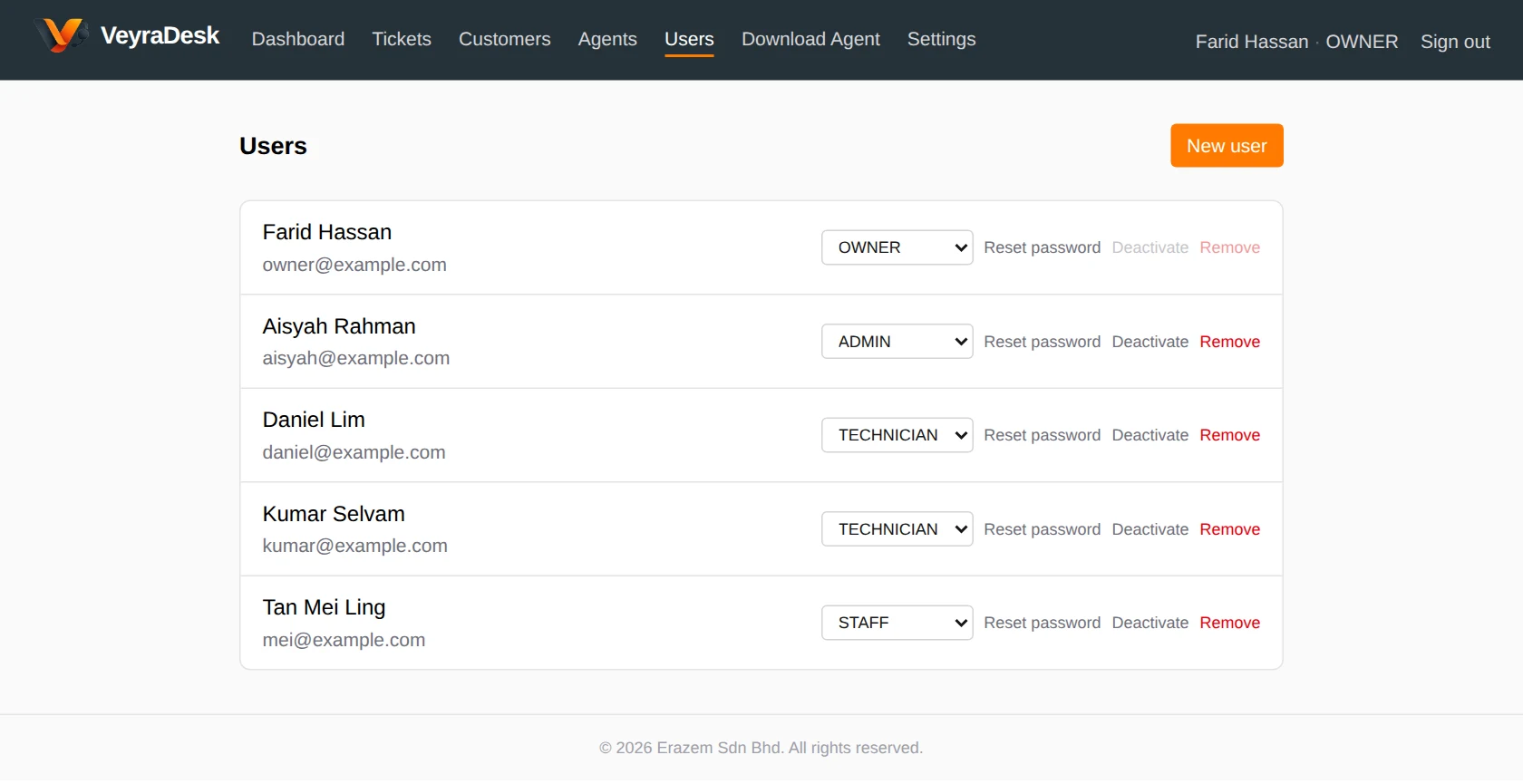
Create your workspace
Sign up with your company details and create the owner account. Then add your team and give each person the right role.
- Your own workspace, kept separate from every other organisation
- Owner, Admin, Technician and Staff roles
- Sign in from any modern web browser
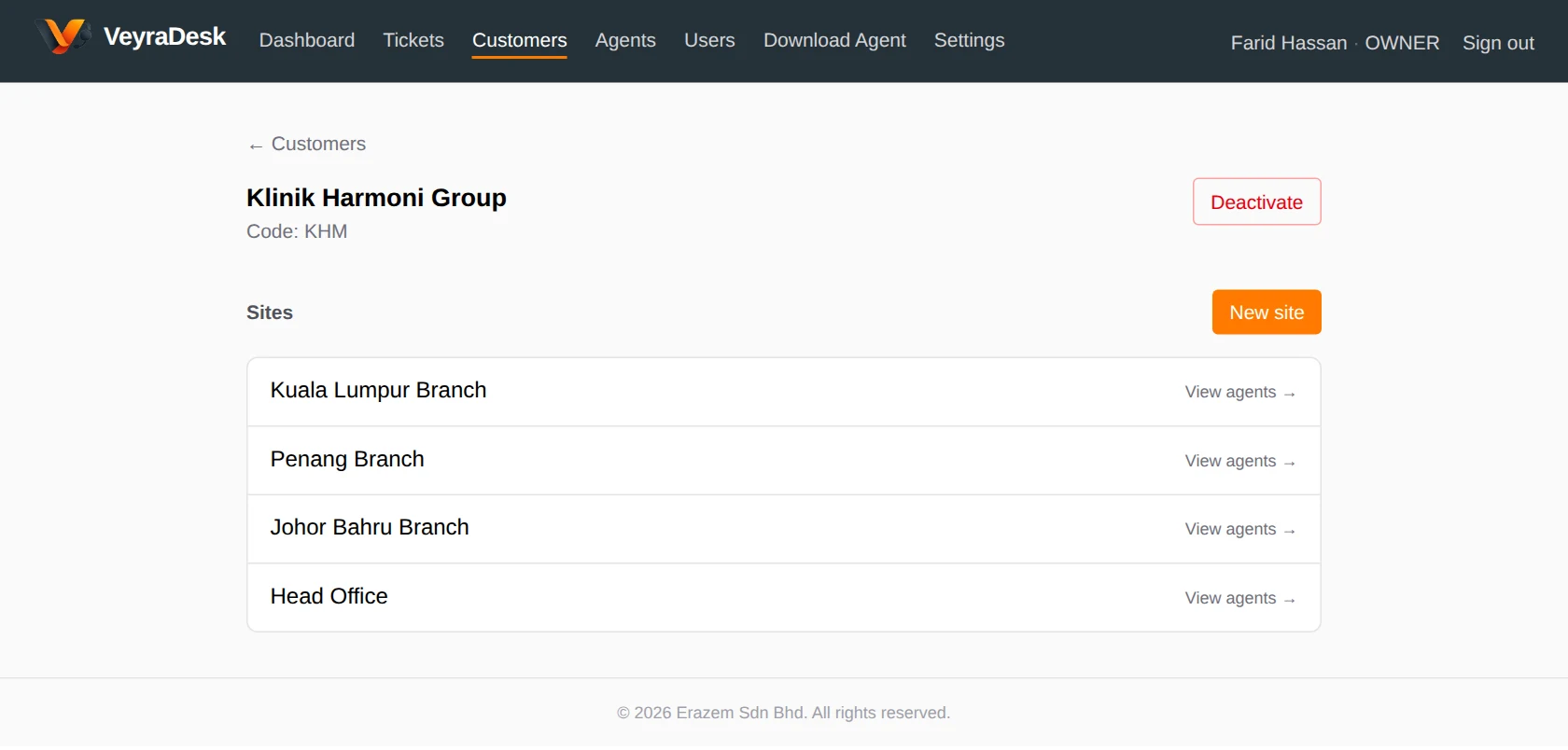
Add customers & devices
Create your customers and their sites, then download the VeyraDesk Agent installer for a site and run it on the computers you support.
- Customers with reference codes and multiple sites
- Site-specific installers with a time-limited enrolment token
- Devices appear automatically with online and last-seen status
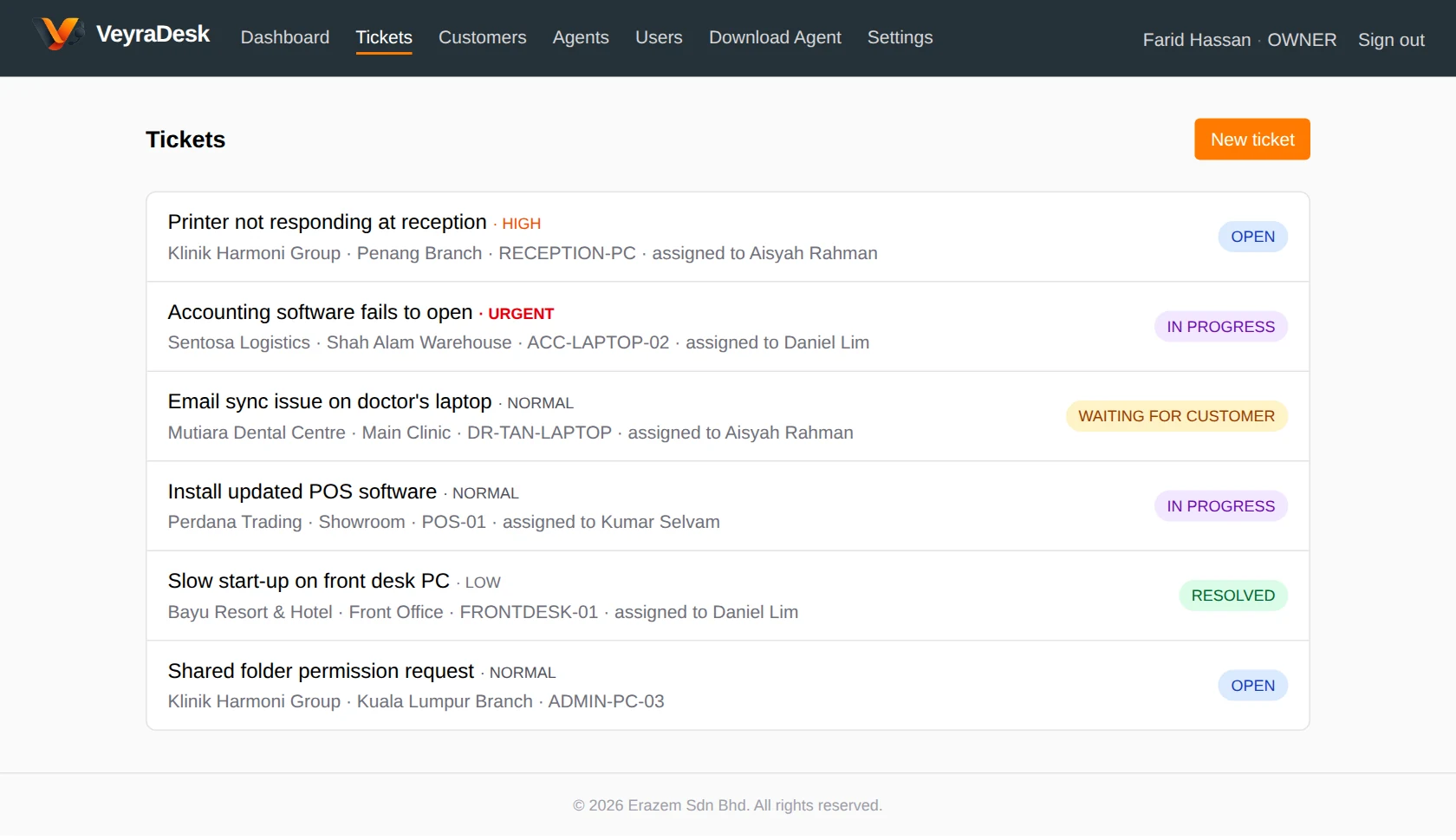
Connect & support
Log a ticket, start a remote session from the ticket or the device list, and keep the conversation and history in one place until the issue is resolved.
- Every session is authorised by VeyraDesk before it starts
- Attended (user approves) or unattended (one-time password) access
- Sessions are time-limited, can be revoked and are recorded
What happens when you connect
Remote access is controlled by VeyraDesk at every step, so your customers know who connected, when and why.
- Step 1
Technician requests a session
From a ticket or the device list, a technician with the right role asks to connect.
- Step 2
VeyraDesk authorises it
VeyraDesk checks the device is active and creates a short-lived authorisation for that session only.
- Step 3
The device confirms
The VeyraDesk Agent re-checks the authorisation before allowing the connection.
- Step 4
Approve or connect unattended
The user approves on screen, or a fresh one-time password is used — never a shared, permanent one.
- Step 5
Session ends and is recorded
Sessions expire automatically, can be revoked at any time, and are written to the audit log.
Help your clients better
Deliver faster support with VeyraDesk
Start on the Free plan — no credit card required — and bring your customers, sites, devices and tickets into one workspace.
- Fewer on-site visits
- Authorised, time-limited sessions
- Every customer and site in one place
- Built for support teams